From 2 Hours to 3 Mins: Fast Auto-Captions in Premiere Pro with MOGRTs
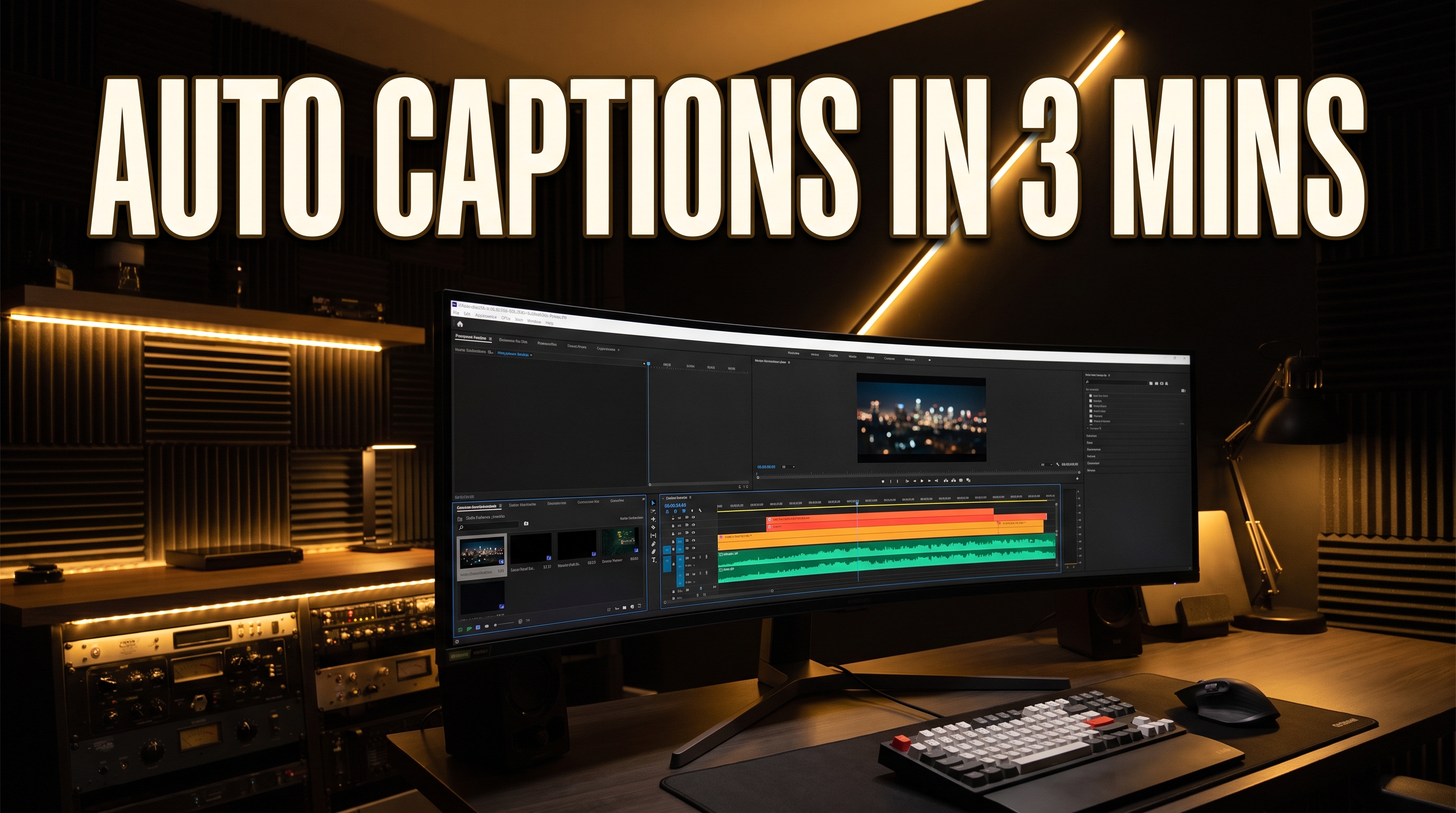
In the fast-paced landscape of short-form video—whether you are editing Instagram Reels, TikToks, or YouTube Shorts—captions are no longer optional. Studies show that over 80% of mobile users watch vertical video on mute or rely heavily on kinetic, animated subtitles to retain information. However, manually typing out dialogue, syncing keyframes, and designing custom text for a 60-second video used to consume between 1 to 2 hours of editing time.
Fortunately, modern editing workflows have evolved dramatically. By combining artificial intelligence with Motion Graphics Templates (.mogrt), video editors can cut captioning time down to under 2 to 3 minutes. While Adobe’s native toolset has come a long way, pairing MOGRT templates with AI tools—ranging from built-in features to specialized Premiere Pro extensions like Happy Duck AI—can streamline your entire timeline workflow.
In this guide, we will step through the exact workflow to generate, convert, and format auto-captions inside Adobe Premiere Pro, while examining the real-world limitations of native tools that every professional editor must navigate.
Step-by-Step: The Fastest AI + MOGRT Caption Workflow in Premiere Pro
To achieve high-converting, viral-style kinetic captions, Adobe Premiere Pro relies on a four-step native process that leverages built-in AI speech recognition and graphics conversion.
1. Transcribe Audio via AI Speech to Text
Open your project inside Premiere Pro (2024 through 2026 builds). Navigate to Window > Text > Transcript. Click Create Text Transcript. Premiere’s built-in AI engine will analyze your audio track and auto-generate a complete dialogue transcript in seconds.
2. Generate Subtitles Optimized for Short-Form Video
Once the transcript is generated, click the Create Captions icon at the top of the Text panel. For vertical Reels and Shorts, standard long subtitles look cluttery. Customize your caption generation parameters with these exact settings:
- Maximum length in characters: 12 to 15 (keeps chunks punchy and easy to read).
- Minimum duration in seconds: 1.2s (prevents captions from flashing too fast).
- Lines: Single (essential for vertical 9:16 viewing).
3. Convert Subtitle Track to Graphics (Upgrade Captions to Graphics)
Standard caption tracks in Premiere Pro are restrictive and do not allow complex motion graphics, drop shadows, or per-word animations. To unlock full design freedom, select all generated caption blocks on your subtitle track, navigate to the top application menu, go to Graphics and Titles, and click Upgrade Captions to Graphics.
First introduced in Premiere Pro v23.4 (May 2023) and continuously updated across recent versions, this feature instantly converts basic subtitle clips into fully editable Essential Graphics vector layers directly on your video track.
4. Apply MOGRT Presets and Text Styles
With your captions converted into standard graphic clips, open the Essential Graphics panel. Highlight all converted text layers on your timeline and drop your preferred .mogrt template or saved Text Style directly onto them. This instantly applies custom fonts, neon strokes, pop-in scale animations, and color palettes across your entire timeline in a single click.
Native Premiere Pro Tools vs. Third-Party AI Plugins
While Premiere Pro’s native workflow is a massive step forward, professional editors frequently encounter workflow bottlenecks depending on their project requirements and target language. Here is how native tools compare against third-party AI extensions like REDitors, Captioneer, Captions.ai, and timeline-native AI tools.
| Feature / Capability | Adobe Premiere Pro (Native) | Third-Party AI Extensions |
|---|---|---|
Understanding Native Adobe Pricing
For editors evaluating native cost structures, Adobe offers several entry points:
- Premiere Pro Single App: $22.99 / month (annual commitment, billed monthly). Includes full access to built-in AI Speech-to-Text with unlimited transcription across supported languages.
- Creative Cloud All Apps: $69.99 / month (regular individual plan) or $19.99 / month (first-year student/teacher discount).
- Free Access: Adobe provides a 7-day free trial with full feature access.
The Real-World Limitations of Built-In Premiere Tools
It is crucial for content creators to understand where Premiere Pro’s built-in features excel and where they fall short. While native transcription is convenient, it presents three major operational barriers:
- The Lack of Arabic Support: Native Speech to Text supports 27+ major languages, but Adobe Premiere Pro does not natively support Arabic speech recognition (a limitation documented across community feature requests even up to Premiere Pro 26). Editors producing Arabic content cannot utilize native Speech to Text or native Text-Based Editing without external tools.
- Text-Based Editing Dependencies: Premiere’s native Text-Based Editing feature relies entirely on its internal Speech-to-Text engine. Because it requires successful text transcription to function, native silence removal cannot be used on unsupported languages, nor can it intelligently isolate human voice activity (VAD) from background noise or filter out duplicate multi-take mistakes.
- Manual Keyframing Overhead for Per-Word Styles: Converting captions to graphics allows standard MOGRT styling, but creating dynamic "Alex Hormozi style" word-by-word active text highlights still demands manual splitting or specialized third-party extension scripts.

Stop Fighting Premiere’s Language & Caption Limits
Happy Duck AI runs directly inside Adobe Premiere Pro on Windows and macOS. Automatically generate accurate captions in Arabic and all major dialects, strip silent pauses with advanced Voice Activity Detection (VAD), insert B-Roll, and generate AI visuals without leaving your timeline.
Try Happy Duck AIChoosing the Right Workflow for Your Editing Suite
Determining the right captioning strategy comes down to your specific client base, regional language requirements, and volume of short-form output.
When Native Premiere Pro Tools Are Sufficient:
If you produce content strictly in English or one of the 27 natively supported languages, require basic static or uniformly animated text presets, and already pay for an active Creative Cloud subscription, Adobe's native Upgrade Captions to Graphics workflow provides solid value without added software costs.
When You Need a Specialized AI Extension:
If your editing workflow involves high-volume short-form production, complex dialect requirements, or tight client deadlines, native tools can create severe friction. A dedicated timeline extension becomes essential when:
- You Edit Arabic Content: Because Premiere’s internal engine lacks Arabic transcription, plugins powered by advanced speech models are required to generate accurate Arabic captions and enable text editing.
- You Need Automatic Silence & Take Trimming: Native Text-Based Editing fails when transcription is absent. Timeline extensions utilizing Voice Activity Detection (VAD) analyze raw audio levels directly—allowing you to cut pauses, trim silence, and pick the best takes automatically regardless of the spoken language.
- You Want Full Workflow Automation: Combining auto-captioning, smart pause removal, automated B-Roll insertion, and AI image generation inside a single panel eliminates switching between separate browser tabs and standalone desktop apps.
Conclusion
Mastering the speed of short-form video production requires leveraging AI to eliminate repetitive manual labor. Converting native subtitle tracks into vector graphic layers via Premiere Pro's Upgrade Captions to Graphics feature paired with MOGRT templates reduces caption styling time from hours to minutes.
However, native tools are not a one-size-fits-all answer—especially for creators working with unsupported languages like Arabic or editors seeking automated per-word animation and intelligent silence trimming. For editors looking to eliminate workflow bottlenecks and achieve total timeline automation, integrating a specialized extension like Happy Duck AI directly inside Premiere Pro provides the ultimate competitive edge.