Premiere Pro (+ Happy Duck AI) vs DaVinci Resolve on Mac: Which Is Best for YouTube Editors?
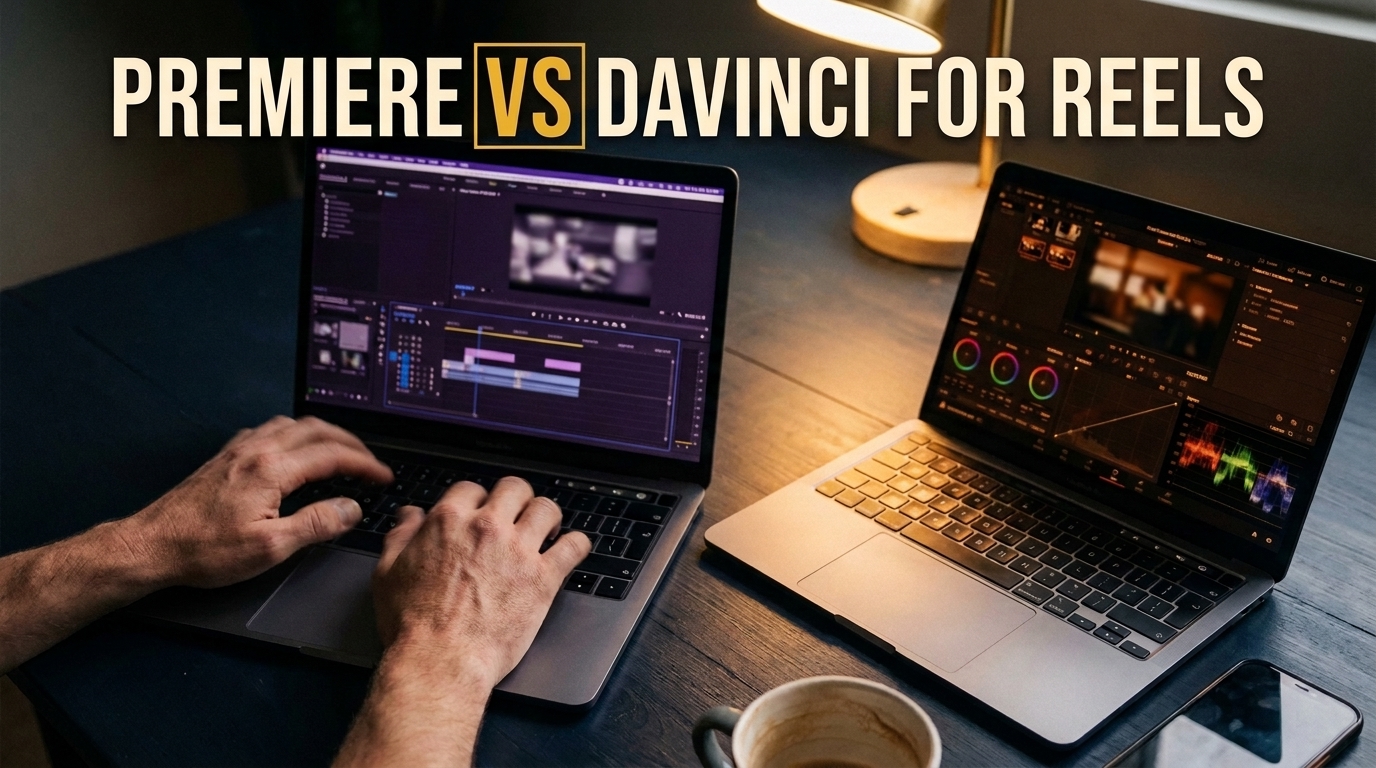
The macOS Editing Dilemma: Premiere Pro vs. DaVinci Resolve
If you are a freelance YouTube video editor working on Apple Silicon Mac hardware (M1 through M4 chips), picking the right Non-Linear Editor (NLE) directly dictates your turnaround speed, client capabilities, and monthly operational expenses. For years, the decision was straightforward: Adobe Premiere Pro was the agency standard, while Blackmagic Design DaVinci Resolve was reserved for high-end color grading.
Today, both platforms have evolved into full-fledged post-production powerhouses equipped with artificial intelligence. However, their underlying business models, performance characteristics, and timeline workflows differ significantly. While DaVinci Resolve excels in standalone all-in-one integration, Adobe Premiere Pro remains the standard for template compatibility and third-party workflow extensions—such as Happy Duck AI—which drastically reduce repetitive cutting tasks.
In this guide, we break down the pricing, hardware optimization, feature sets, and workflow limitations of Premiere Pro and DaVinci Resolve so you can make the right investment for your freelance YouTube editing business.
1. Pricing and Licensing Models
The financial barrier to entry is often the first criteria freelance video editors weigh, especially when managing overhead costs on macOS setups.
Adobe Premiere Pro: Subscription-Based Model
Adobe operates strictly on a Creative Cloud subscription model. There is no perpetual lifetime license available.
- Single App Plan: Approximately $22.99 USD per month on an annual commitment (billed monthly), or $31.49 USD per month on a flexible month-to-month plan.
- Creative Cloud All Apps: Ranging from $59.99 to $89.99 USD per month. This package bundles Premiere Pro with After Effects, Photoshop, Illustrator, Audition, and Frame.io integration.
- Trial: Limited to a 7-day free trial.
DaVinci Resolve: Perpetual License & Free Tier
Blackmagic Design offers an attractive pricing model for independent creators and budget-conscious freelancers.
- DaVinci Resolve (Free Version): Costs $0 forever. It is remarkably feature-complete, offering up to 4K resolution exports, zero watermarks, and no time restrictions.
- DaVinci Resolve Studio (Paid Version): A one-time payment of $295 USD for a lifetime license. This license includes all future major software updates at no extra cost, alongside hardware acceleration and advanced AI features.
2. macOS Performance and Apple Silicon Optimization
MacBook Pro and Mac Studio machines powered by Apple Silicon chips are popular choices among YouTube creators. How each editor harnesses the Metal API and media engines impacts rendering and editing fluidly.
DaVinci Resolve: Widely regarded as one of the best-optimized NLEs for macOS. Its underlying engine is built to utilize Apple Silicon and the Metal API efficiently. Timeline playback for 10-bit H.264/H.265 camera footage recorded for YouTube is exceptionally smooth, and final render export speeds often outperform competitors on equivalent Mac hardware.
Adobe Premiere Pro: Operates natively on Apple Silicon with dedicated hardware acceleration for ProRes and H.264/H.265 decoding. While playback performance on modern Macs is fast, Premiere Pro tends to consume noticeably higher RAM and VRAM when processing multi-layered graphics, complex nested sequences, or third-party dynamic links.
3. Core Feature Breakdown for YouTube Editors
Color Grading
DaVinci Resolve is the undisputed industry standard for color correction. Its node-based color page gives creators precise control over primary adjustments, power windows, spatial noise reduction, and multi-camera color matching. Premiere Pro features the Lumetri Color panel, which uses a layer-based approach. Lumetri is intuitive and fast for basic YouTube color fixes, but lacks the granular node-level depth required for complex multi-cam balance or cinematic grading.
Audio Processing
DaVinci Resolve includes Fairlight, a built-in Digital Audio Workstation (DAW) capable of multi-channel mixing, Fairlight FX, and AI Voice Isolation inside the main application. Premiere Pro relies on its Essential Sound panel and AI Speech Enhancement. While Premiere offers dynamic linking to Adobe Audition, switching between separate applications can slow down rapid turnaround edits.
Motion Graphics & Ecosystem
Premiere Pro holds a dominant position in the YouTube ecosystem due to its motion graphics template system (`.mogrt`). Thousands of pre-made YouTube elements—lower thirds, callout graphics, title cards, and sound transitions—are designed specifically for Premiere Pro. DaVinci Resolve uses Fusion for motion graphics, which relies on a node-based architecture that presents a steeper learning curve for editors transitioning from layer-based software like After Effects.
4. Silence Removal, Auto-Captions & Text-Based Editing: Native Gaps Explained
For YouTube editors handling talking-head videos, vlogs, and podcasts, cutting out pauses and generating captions consumes up to 70% of editing time. Both NLEs offer built-in text tools, but native implementations carry distinct real-world limitations.
Premiere Pro Native Text-Based Editing Limitations
Adobe Premiere Pro features built-in Speech-to-Text and Text-Based Editing, allowing editors to trim video sequences by deleting words in a text transcript. However, this feature relies entirely on Adobe's Speech-to-Text engine, which presents critical limitations:
- Lack of Language Support: Adobe Speech-to-Text does not support the Arabic language (including Premiere Pro 26, as documented in official Adobe community requests). If your source footage contains Arabic dialogue or regional dialects, native Text-Based Editing cannot generate a transcript and is practically unusable for automated cutting.
- Transcript Dependence: Native Premiere tools cannot perform silence removal based purely on audio waveform analysis or Voice Activity Detection (VAD). If speech recognition fails or is unsupported for a language, automated trimming cannot take place natively.
DaVinci Resolve AI Captions Limitations
DaVinci Resolve Studio ($295) offers AI Auto-Captions and Voice Isolation. However, these AI tools are locked behind the paid Studio edition. Furthermore, Resolve lacks integrated timeline tools for automatically fetching stock B-roll or generating custom AI graphics directly onto your cut tracks without third-party intervention.

Supercharge Premiere Pro with AI
Remove silences automatically across any language, generate precise Arabic captions, find B-roll, and generate AI visuals directly in your timeline.
Try Happy Duck AI5. Premiere Pro vs. DaVinci Resolve: Quick Feature Comparison
Below is a direct comparison of key metrics relevant to freelance YouTube editors on macOS:
| Feature / Metric | Adobe Premiere Pro | DaVinci Resolve (Studio) | Premiere Pro + Happy Duck AI |
|---|---|---|---|
| Pricing Model | Subscription (~$22.99+/mo) | Free / $295 One-Time | Subscription + Plugin |
| Mac Optimization | Native Apple Silicon | Exceptional Metal API Optimization | Native Apple Silicon |
| Color Engine | Lumetri Color (Layer-based) | Node-Based (Industry Standard) | Lumetri Color (Layer-based) |
| Silence Removal (VAD / Any Language) | Transcript-dependent (No Arabic support) | Manual / Waveform-dependent | Automated VAD (Supports any language/dialect) |
| Auto-Captions & Subtitles | Built-in (Limited language set) | Built-in (Studio Version) | High-Accuracy Subtitles (Full Arabic & Dialect Support) |
| Timeline B-Roll & AI Image Generation | Manual Import | Manual Import | Direct AI Search & Generation on Timeline |
6. Final Verdict: Which Software Should You Choose?
Choose DaVinci Resolve if:
- You want to eliminate recurring monthly software subscriptions and prefer a free or $295 lifetime investment.
- Your YouTube projects demand advanced color grading, complex multi-cam matching, or high-end cinematic finishing.
- You want maximum playback and rendering efficiency out of MacBook hardware without relying on heavy graphic templates.
Choose Premiere Pro (+ Happy Duck AI) if:
- You regularly collaborate with agencies, production houses, or clients who send native Premiere Pro project files (`.prproj`).
- You rely heavily on pre-made Motion Graphics Templates (`.mogrt`), After Effects transitions, and Photoshop assets.
- You produce multilingual or Arabic YouTube content and require automated silence removal, high-accuracy subtitle generation, instant B-roll insertion, and AI visual creation directly inside your timeline.
While DaVinci Resolve offers an unmatched standalone value for colorists and solo filmmakers, combining Adobe Premiere Pro with Happy Duck AI turns Premiere into an automated post-production workstation. By bridging native transcription gaps and automating initial assembly cuts, editors can deliver polished client projects in a fraction of the time.