From 60 Mins to 3 Mins: Auto-Remove Pauses in Premiere Pro
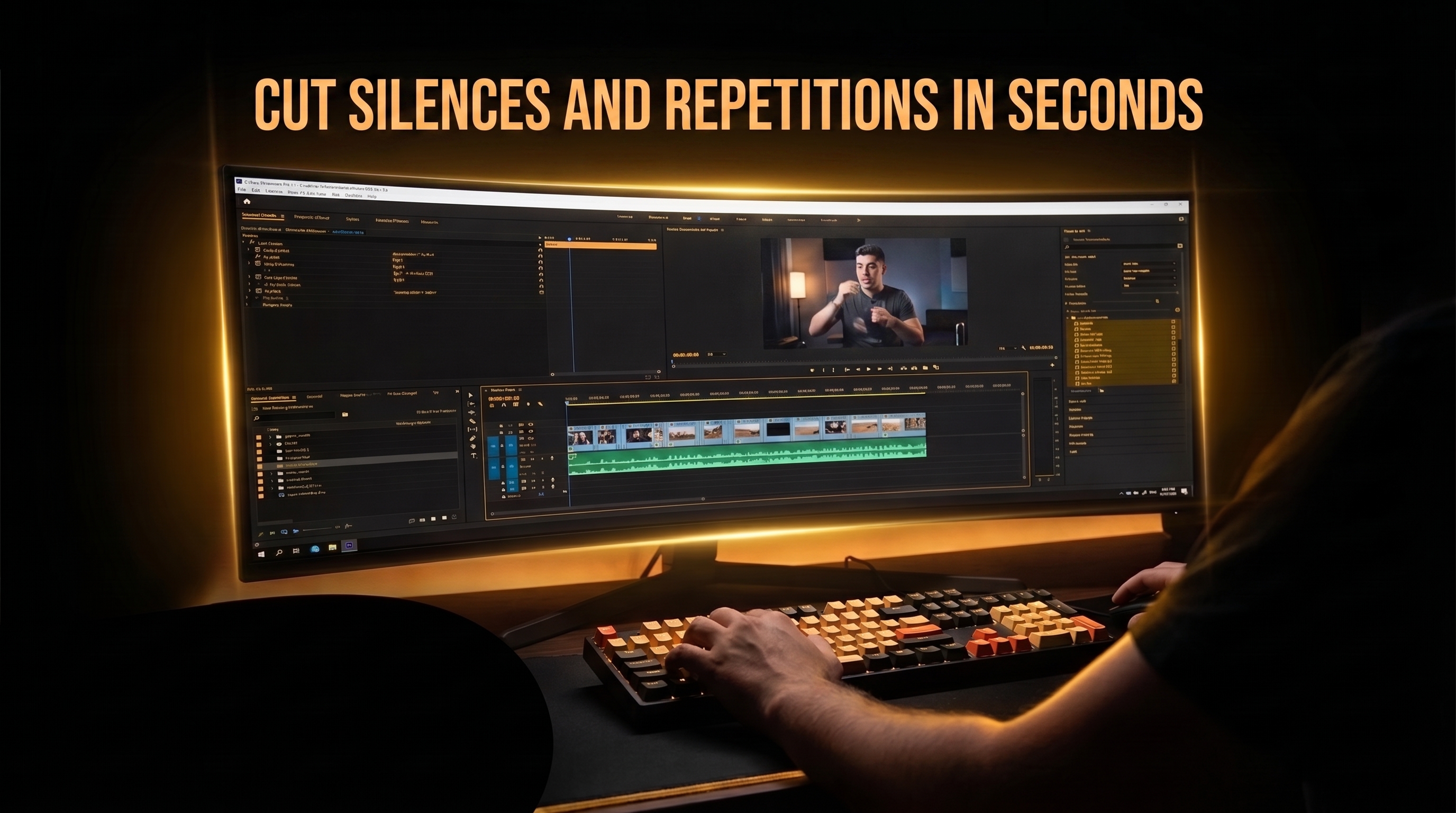
If you edit podcasts, YouTube tutorials, vlogs, or client interviews, you already know the painful reality of manual rough-cutting. Hours spent zooming in on audio waveforms, placing cut points, deleting silent gaps, and dragging clips back together can turn creative video editing into a exhausting grind. Finding a way to automate this process is essential for keeping up with modern content demands.
Adobe introduced built-in tools to speed up dialogue editing, allowing editors to trim silences directly from a text script. While specialized timeline assistants like Happy Duck AI offer advanced workflow automation, understanding native features inside Adobe Premiere Pro is a great starting point for any editor looking to streamline their initial rough cut.
In this guide, we will break down step-by-step how to use Premiere Pro’s native Text-Based Editing to detect and batch-delete pauses, analyze how the tool has evolved, and examine critical limitations you must know before relying on it for complex or multi-language projects.
What Is Text-Based Editing in Premiere Pro?
First introduced in major updates and continuously refined through Premiere Pro v24, v25, and v26, Text-Based Editing transforms how you edit talking-head footage. Instead of cutting on the timeline sequence directly, Premiere Pro generates an automated speech-to-text transcript of your audio track. Deleting words or pauses in the transcript instantly trims the corresponding media on your timeline in real time.
This native feature requires no separate purchase beyond an active Adobe Premiere Pro subscription (starting at roughly $22.99/month for individual plans or $59.99/month for Creative Cloud All Apps). It includes three main automated functions:
- Speech-to-Text Transcription: Automatically converts spoken audio into written text.
- Pause Detection: Identifies silence gaps across a sequence and flags them visually as
[...]. - Filler Word Removal: Identifies hesitations like "um" and "uh" alongside silent gaps.
Step-by-Step: How to Automatically Remove Pauses in Premiere Pro
To start cutting silent gaps using Premiere’s built-in tool, follow this simple workflow inside your project:
Step 1: Open the Text Panel
Navigate to the top menu bar and select Window > Text. This opens the dedicated panel where transcription and subtitle controls reside.
Step 2: Generate the Speech Transcript
Select your sequence or source clip on the timeline, switch to the Transcript tab, and click Transcribe. Premiere Pro will process the audio track using its native speech recognition engine.
Step 3: Filter for Silent Pauses
Once the transcript is generated, click the Filter / Search icon (magnifying glass) at the top of the Text panel. Toggle on Pauses (represented by bracketed dots [...]). You can customize the minimum duration threshold—for example, setting it to 0.25 seconds or 0.5 seconds—to prevent cutting natural, intentional pauses in speech.
Step 4: Execute Batch Deletion
Click the Delete button in the panel interface and choose Delete All to remove all highlighted pauses at once. Premiere Pro offers two deletion methods depending on your editing goals:
- Extract (Ripple Delete): Removes the silence gaps and automatically ripples the remaining video clips together, closing all empty timeline gaps (the standard choice for rough cuts).
- Lift: Removes the silence but leaves empty gaps on the timeline, allowing you to manually insert B-Roll or graphics later.
The Critical Limitations of Premiere Pro's Native Pause Remover
While native Text-Based Editing works well for straightforward, high-quality English recordings, professional editors quickly run into technical bottlenecks when working on real-world projects. Understanding these constraints is essential to avoiding unexpected editing headaches.
1. Total Dependency on Speech-to-Text (The Arabic Language Gap)
The biggest architectural flaw in Premiere Pro’s native pause detection is that it depends 100% on text transcription. If Premiere cannot transcribe your audio into text, it cannot detect pauses.
Because Adobe Premiere Pro’s native Speech-to-Text engine does not support the Arabic language (a major omission documented across Adobe Community feature requests up through Premiere Pro 26), creators working with Arabic content, regional dialects, or unsupported global languages cannot use native Text-Based Editing to remove silences. For Arabic creators, the native pause remover simply will not function on their raw footage.
2. Lack of True Voice Activity Detection (VAD)
Because native trimming relies on text matching rather than acoustic signal processing, it often struggles with background noise, room tone, microphone hiss, or overlapping voices. A true Voice Activity Detection (VAD) engine analyzes sound frequencies and decibels directly, identifying human speech regardless of language or background environment.
3. No Automated "Best Take" or Duplicate Selection
When speakers repeat lines or stumble over phrases, native Text-Based Editing leaves all repeated takes intact. Editors must still manually read through the transcript to pick the best sentence attempt.

Cut Silences in Any Language—Including Arabic
Happy Duck AI uses advanced Voice Activity Detection (VAD) audio analysis directly inside Premiere Pro to instantly cut silences in any dialect, select your best takes, generate accurate Arabic subtitles, and auto-insert B-Roll.
Try Happy Duck AINative Premiere Pro vs. Happy Duck AI: Feature Comparison
To help you determine which tool fits your production demands, here is how Premiere’s native Text-Based Editing compares to dedicated AI timeline extensions like Happy Duck AI:
| Feature / Capability | Premiere Native Text-Based Editing | Happy Duck AI Extension |
|---|---|---|
| Primary Technology | Speech-to-Text Transcription | Acoustic Level + Voice Activity Detection (VAD) |
| Language Support | Limited native languages (No Arabic) | 100% Language Agnostic (All languages & dialects) |
| Arabic Captioning & Subtitles | Not natively supported | High-accuracy Arabic with regional dialect support |
| Duplicate & Best Take Removal | Manual selection required | Automated best-take identification |
| B-Roll & AI Image Generation | Manual searching & placing | Automated B-Roll search & AI image generation |
| Timeline Workflow | Inside Text Panel | Direct Timeline Panel Integration (Win & macOS) |
Final Verdict: When to Use Native Tools vs. Dedicated AI Solutions
Premiere Pro’s native Text-Based Editing is a valuable feature for basic dialogue assembly in supported languages like English or Spanish. If you only produce simple single-speaker videos in supported languages, it offers a quick way to clean up obvious hesitations.
However, if you edit multi-lingual content—especially Arabic video podcasts, YouTube shorts, or commercial projects—native tools leave a massive gap in your workflow. Because Premiere’s internal engine cannot process Arabic speech-to-text, native pause removal simply fails to help Arabic content creators.
To overcome these language barriers, eliminate duplicate takes automatically, generate precise Arabic captions, and populate your timeline with B-Roll, upgrading your workflow with a dedicated plugin is the ultimate productivity boost. Experience faster timeline editing today—install Happy Duck AI for Adobe Premiere Pro and turn hours of manual cutting into a single click.